Log in or Register

How to order a replacement Recreational Skipper's Ticket (RST) card

Find out how to order a replacement RST card on DoTDirect and complete online payment.

Step 1: Log in to DoTDirect

To order a replacement RST card you must login to your DoTDirect account.

If you need assistance creating or logging in to your DoTDirect account, you can find detailed guides in our help centre.

Step 2: Navigate to the 'Recreational Skipper’s Ticket' page

Once logged in to DoTDirect, use the top navigation bar to navigate to the 'Recreational Skipper’s Ticket' page, which can be found under the 'Marine' drop down.

Step 3: Click the 'Replace my card' link

On the 'Recreational Skipper’s Ticket' page, to order a replacement RST card, find the 'Replace my card' button near the bottom of the page. Click the 'Replace my card' button to begin the process.

Step 4: Confirm if you would like to proceed

Ordering a replacement RST card will incur a $26.00 fee. If you wish to continue, click the 'Yes' button.

Step 5: Read the Terms and Conditions

Please read the 'Terms and Conditions' applying to ordering a replacement RST card.

Once you have read and understand the Terms and Conditions, tick the 'I have read and agree to the terms and conditions of use.' box, and press 'Next' to continue on to the next step.

Step 6: Select the reason for replacement

Use the drop-down menu and select the 'Reason for replacement card', and press 'Next' to continue on to the next step.

Step 7: Review order details and proceed to pay

Review the details displayed on the confirmation page including the declaration. If all these details are correct, check the declaration box. 

The 'Pay now' button will take you to the checkout to complete the payment for the transaction.

Step 8: Complete the transaction in checkout

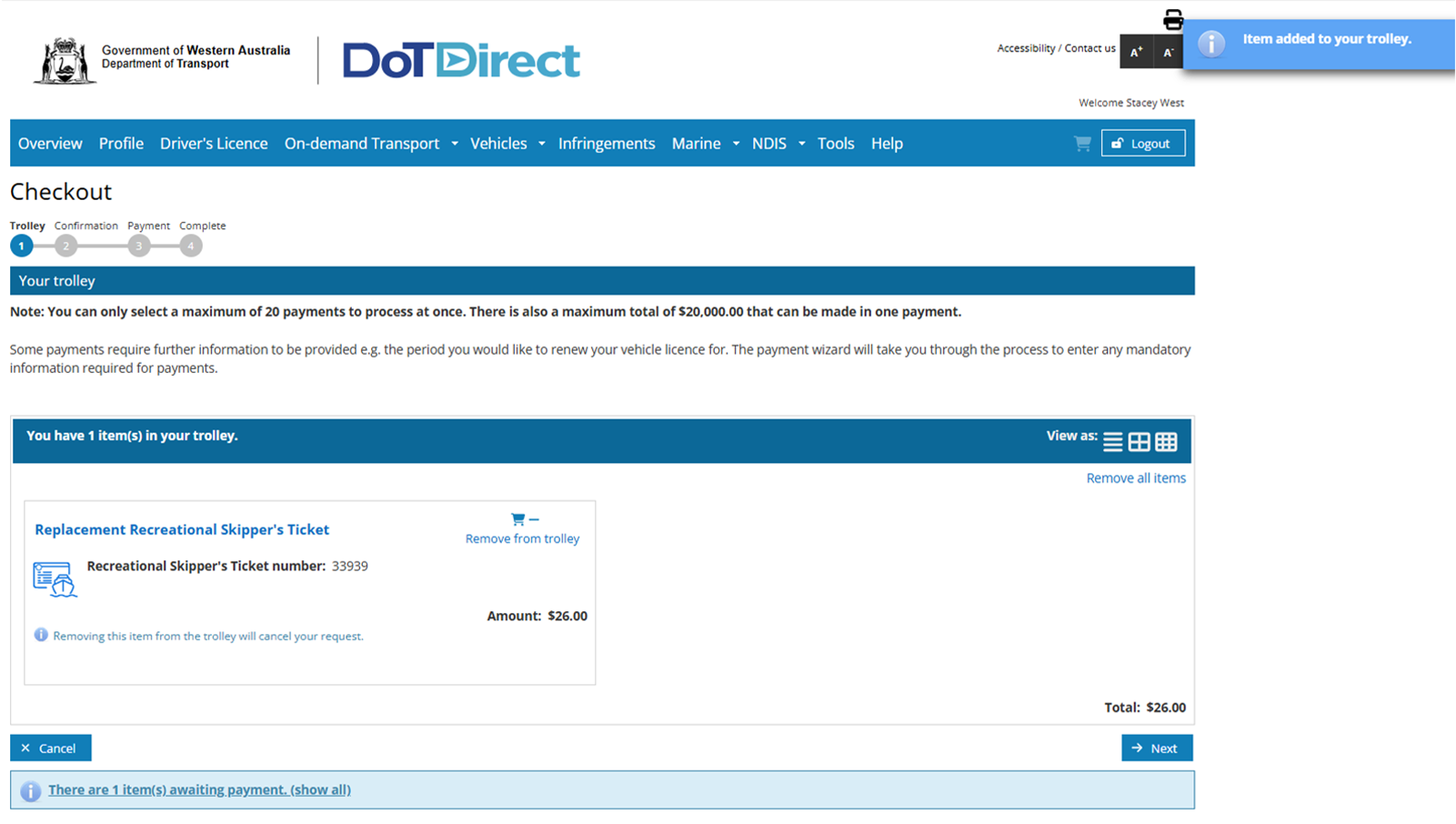
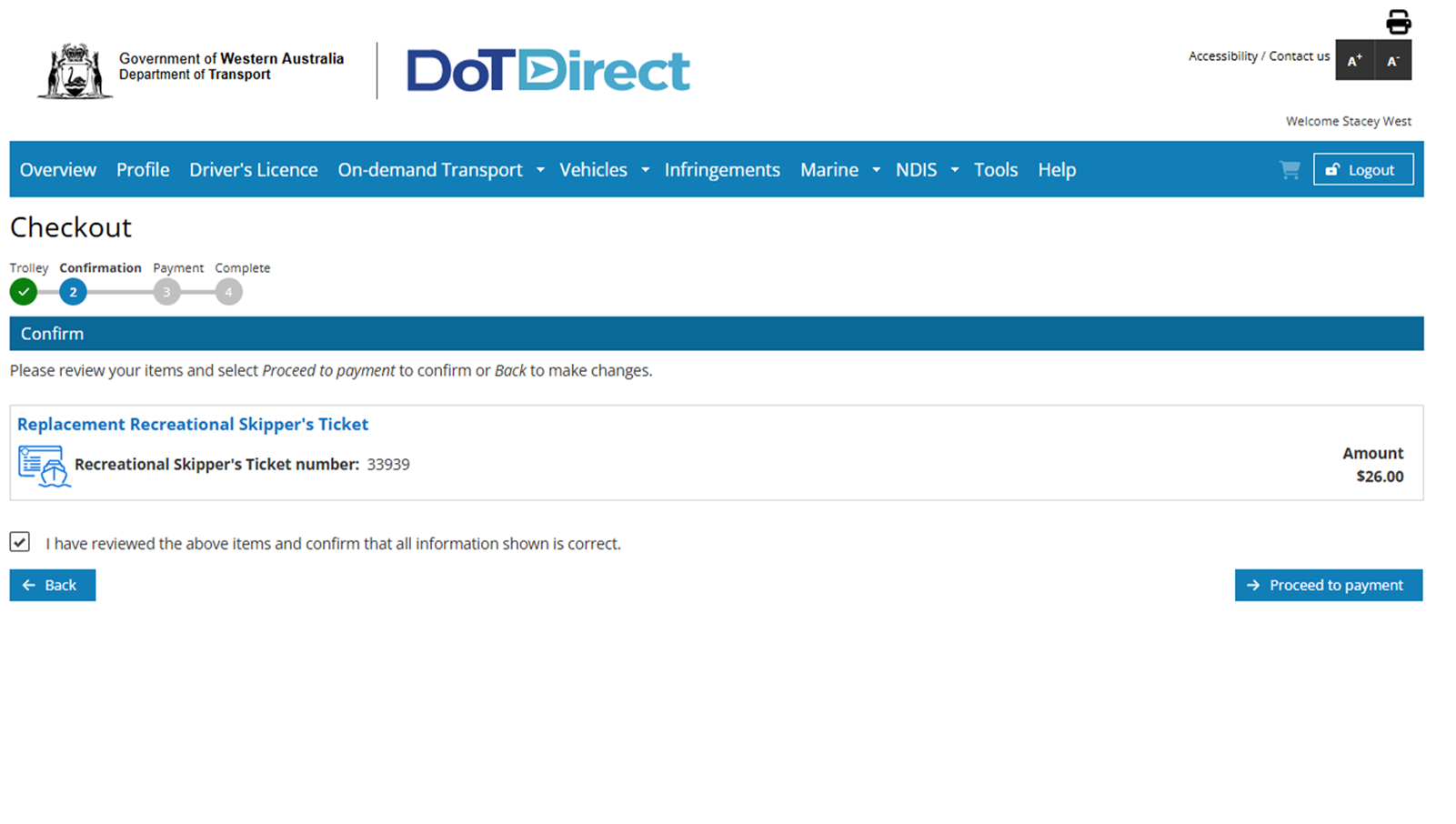
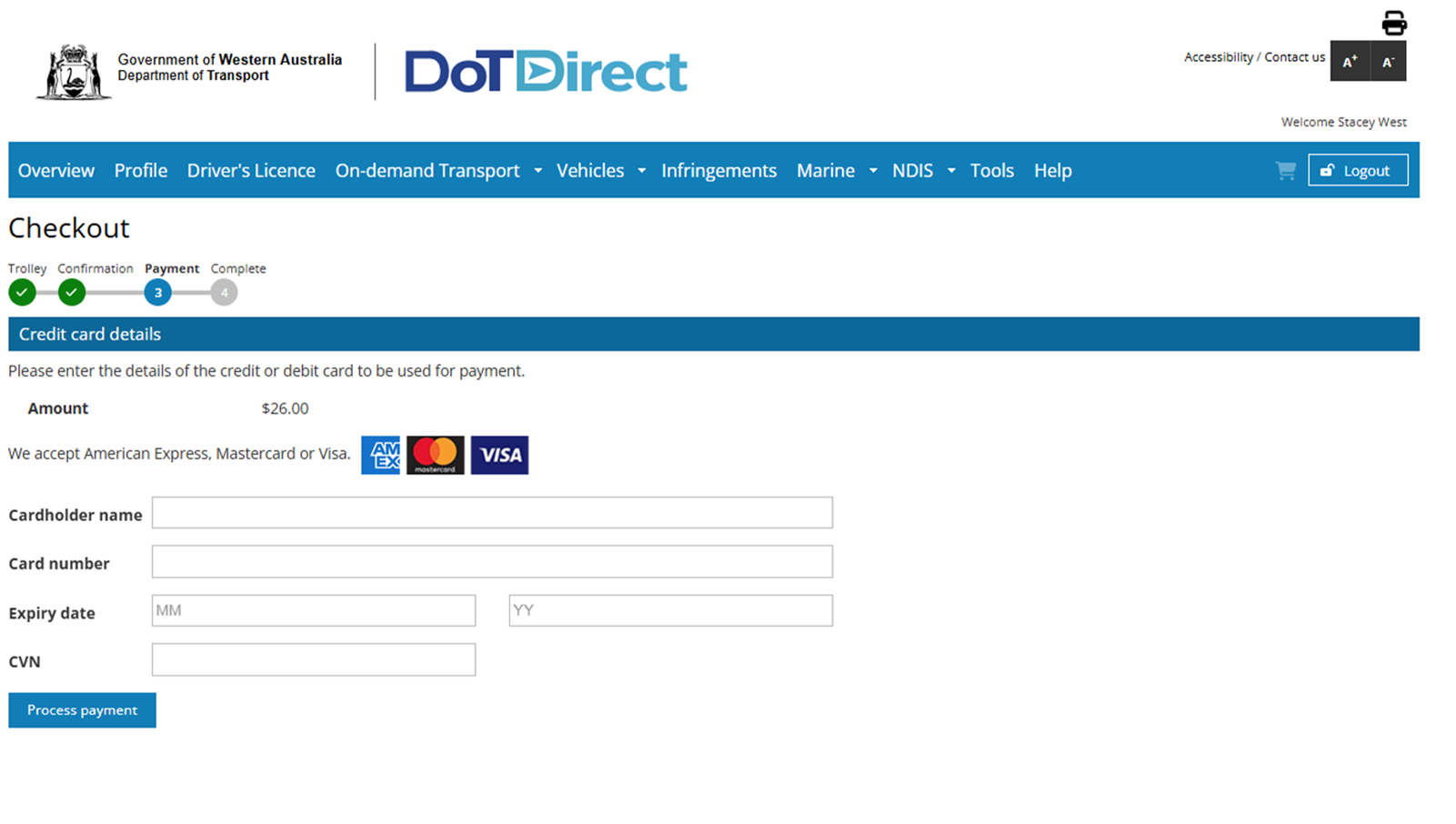
Review the items in the DoTDirect checkout are correct and then proceed through the checkout. If all items and information is correct you will be asked to provide payment details. When prompted enter your payment details, ensuring all fields are completed and accurate.

Once your payment details are entered, click the 'Process payment' button to complete the transaction. 

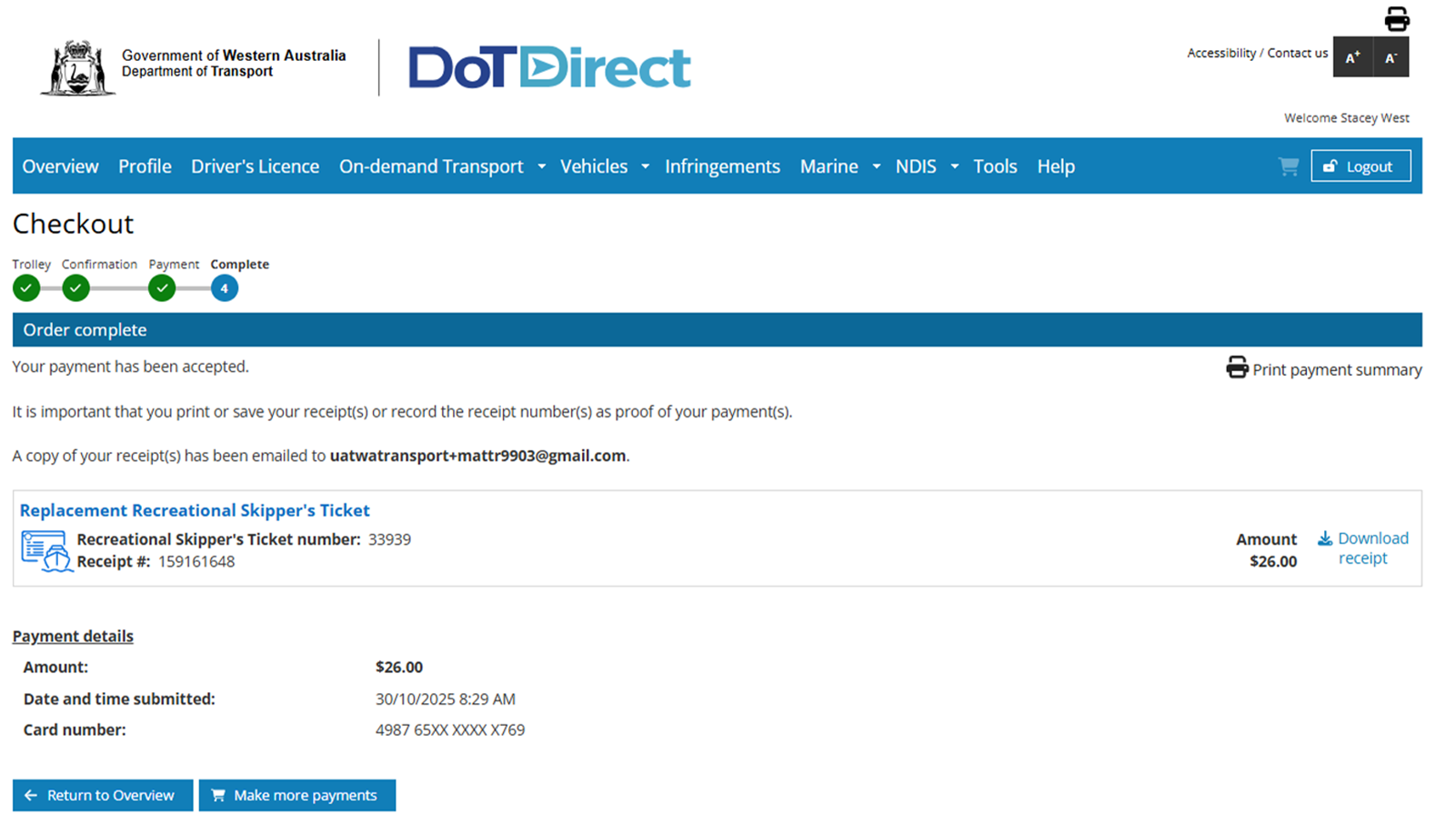
A confirmation of payment page will display when your payment has been successful. On the 'Order complete' page you can download a receipt of your payment, by clicking the ‘Download receipt’ button located on the right-hand side of the page.

Hi, I’m T-Bot! How can I help you?